
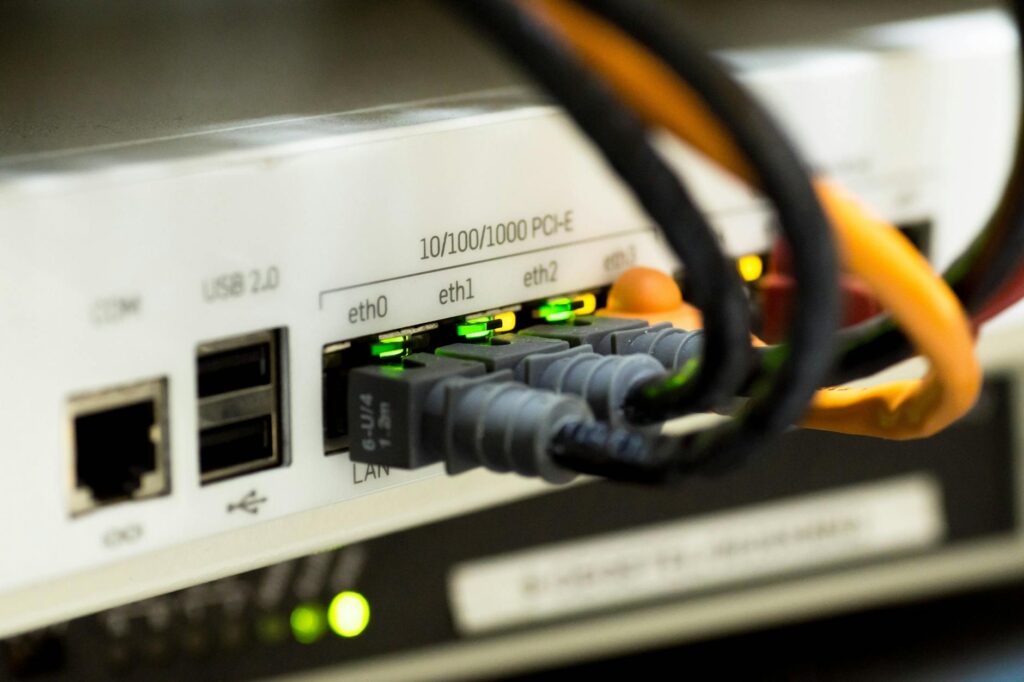

In today’s connected homes, the router is more than a gateway to the internet. Many modern routers hide a versatile USB port on the back, yet most users overlook its potential. This article explores why that modest port can become a central hub for storage, printer sharing, media streaming, and even network security enhancements. By the end of the read, you’ll understand how to transform a simple USB slot into a powerful tool that streamlines daily tasks, reduces clutter, and future‑proofs your home network. Whether you’re a tech‑savvy enthusiast or a casual user, the steps outlined here will help you get the most out of the hardware you already own.
Why the USB port matters
Manufacturers include the USB interface to give users a plug‑and‑play expansion option without buying additional network‑attached storage (NAS) devices. It enables direct attachment of external hard drives, flash sticks, or printers, turning the router into a modest multifunctional hub. The benefits are threefold:
- Centralized storage: Files become accessible to every device on the LAN without separate file‑sharing setups.
- Device sharing: Printers and media players can be accessed wirelessly, reducing cable clutter.
- Cost efficiency: Leverages existing hardware, delaying the need for dedicated NAS or print servers.
Turning your router into a network drive
To create a shared drive, connect a USB‑C or USB‑3.0 external hard drive (or a high‑capacity flash drive) to the router’s port. Most routers support the SMB/CIFS protocol, allowing Windows, macOS, and Linux machines to map the drive as a network location. Follow these steps:
- Plug the storage device into the router’s USB port.
- Log in to the router’s admin console (usually http://192.168.1.1).
- Navigate to USB Settings → Storage Sharing and enable File Sharing.
- Set a share name, assign read/write permissions, and apply the changes.
- On each computer, map the network drive using the router’s IP address (e.g.,
\\192.168.1.1\SharedDrive).
Below is a quick reference of the most common file‑system compatibility as of January 8, 2026:
| File system | Supported routers (examples) | Maximum volume size |
|---|---|---|
| NTFS | Linksys EA7500, ASUS RT-AX86U | 8 TB |
| exFAT | Netgear Nighthawk RAX200, TP‑Link Archer AX50 | 16 TB |
| FAT32 | All mainstream routers | 2 TB (4 GB file limit) |
Remember to format the drive in a supported file system before connecting; otherwise the router will not recognize it.
Sharing printers and media seamlessly
Beyond storage, the USB port can host a USB printer, turning it into a wireless printer for the entire household. After connecting the printer, enable Print Server in the router’s USB settings. Most modern routers also support DLNA or UPnP media servers, allowing TVs, gaming consoles, and mobile devices to stream movies and music directly from the attached drive. A typical workflow:
- Connect the printer or media device to the USB port.
- Activate the appropriate service (Print Server or Media Server) in the admin UI.
- Install the printer driver on each computer or select the DLNA source on your smart TV.
For detailed printer configuration, see the TP‑Link guide. The result is a clutter‑free workspace where anyone can print or stream without dealing with cables.
Security and performance considerations
While the USB port adds convenience, it also expands the attack surface. Ensure you:
- Set strong, unique passwords for the router’s admin interface.
- Enable encryption for shared folders (many routers support WPA2‑Enterprise for SMB).
- Regularly update the router’s firmware to patch known vulnerabilities.
- Limit access to trusted devices using MAC‑address filtering.
Performance can vary based on the router’s hardware. USB 2.0 ports cap transfer speeds at ~35 MB/s, while USB 3.0 can reach up to 150 MB/s, still below the speed of a dedicated NAS with gigabit Ethernet. For heavy media editing or large backups, consider a hybrid approach: use the router for casual sharing and a dedicated NAS for intensive tasks.
Future‑proofing your home network
As smart homes adopt more IoT devices, the need for centralized storage and device sharing will grow. Investing time now to configure the router’s USB capabilities lays a foundation for:
- Automated backups of security camera footage.
- Local caching of firmware updates for IoT gadgets.
- Seamless integration with voice assistants that can pull media from the shared drive.
Look for routers that support USB‑C Power Delivery and dual‑band or tri‑band Wi‑Fi 6E, ensuring bandwidth remains ample as more devices connect.
Conclusion
Turning the often‑ignored USB port on the back of your router into a functional hub can streamline storage, printing, and media streaming across every device in your home. By following the simple setup steps, choosing the right file system, and applying security best practices, you unlock a cost‑effective, scalable solution that grows with your digital lifestyle. Embrace the hidden potential of your router today, and enjoy a cleaner, more connected household.
Image by: Pixabay
https://www.pexels.com/@pixabay